
SSIS: Assign Values to Variables Using an Execute SQL Task
Typically, variable values are assigned when you create them in SSIS. You can provide a hard coded value, or you can use an expression task…

Typically, variable values are assigned when you create them in SSIS. You can provide a hard coded value, or you can use an expression task to populate the variable at run time. I am going to show you how you can query a database and assign values to the variable at runtime.
I recently came upon a project where I had to write contact information back to the API. The contact used a unique key value, and I had to send the contact information along with the ID, and the field identifier in order to update and a specific field. I used a script task, an Execute SQL task, and For_each loop along with a query to populate each of the variables which would be used to construct the PUT statement at runtime.
The example I am going to provide is not nearly so complicated. I am going to show you how you can use and execute SQL task to populate variable values.
I am going to use the WinSCP download script task we built in a previous article. This time, we are going to pass the following which are stored in a database to provide the values for, 4 of our variables.
SFTP_Server
SFTP_User
SFTP_Password
SFTP_FingerPrint
We will store the credentials in a database and write a query, which will be embedded in the execute SQL task. Now before you jump on me about security. There are ways you can encrypt the data in the database and decrypt them at run time. You would need to create an encrypted password table and a decryption package and would most likely need to help of a DBA or the permissions to do so. Encryption/Decryption is beyond the scope of this article. I am more concerned with showing you the “How” of populating the variables using query. This can be done with any variable value should the need arise.
I started the article with brief explanation of how I used the Execute SQL task to construct the PUT statement for an API call. I needed to cycle through the list of IDs contained in a database table in order to populate variables I was using to construct my PUT statement. The Execute SQL task was only one part.
Let’s get started. We will perform 5 tasks.
Create the table.
Populate the table.
Write the query to provide the values.
Configure the execute SQL Task.
Test the package.
Creating the Table
The first thing you will need to do is create the table. I am creating the table in SQL Server using SSMS.
--Create the table
CREATE TABLE usercredentials
  (
     recordid      INT IDENTITY(1, 1) PRIMARY KEY, -- Auto-incrementing unique identifier
     target_system NVARCHAR(100) NOT NULL,         -- Target field (e.g., system or service name)
     username      NVARCHAR(50) NOT NULL,          -- Username field, unique to each user
     password      NVARCHAR(255) NOT NULL,         -- Password field
     sshkey        NVARCHAR(255) NOT NULL          -- SSH Key field
  );
Populating Data
Populate the table with the credentials of the target server. I am using Rebex Tiny SFTP server for this demonstration.
--Insert record into the table
INSERT INTO UserCredentials (Target_system, Username, Password, SSHKey)
VALUES
    ('192.168.1.169', 'tester', 'password', 'ssh-rsa 2048 ACWbHbTJN5iE2jSu42/lBYbV1APgfbl/9a+RsMMG1P0');
Writing the Query
Write the query that will be embedded into the Execute SQL task. This serves as a method of checking if we get the results we expect.
--Query to return the credentials at run time.
SELECT [target_system]
      ,[Username]
      ,[Password]
      ,[SSHKey]
  FROM [SSISDB].[dbo].[UserCredentials]
  where target_system = '192.168.1.169' -- Server name or URL
Verify the results
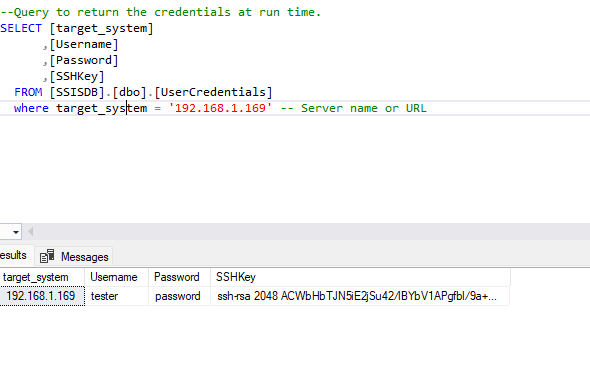
Our table and query are all set. The next step involves making the necessary changes to the SSIS package.
Configuring the Execute SQL Task
I made a copy of the original WinSCP Download.dtsx package and renamed it.
Drag an Execute SQL Task onto the SSIS canvas.
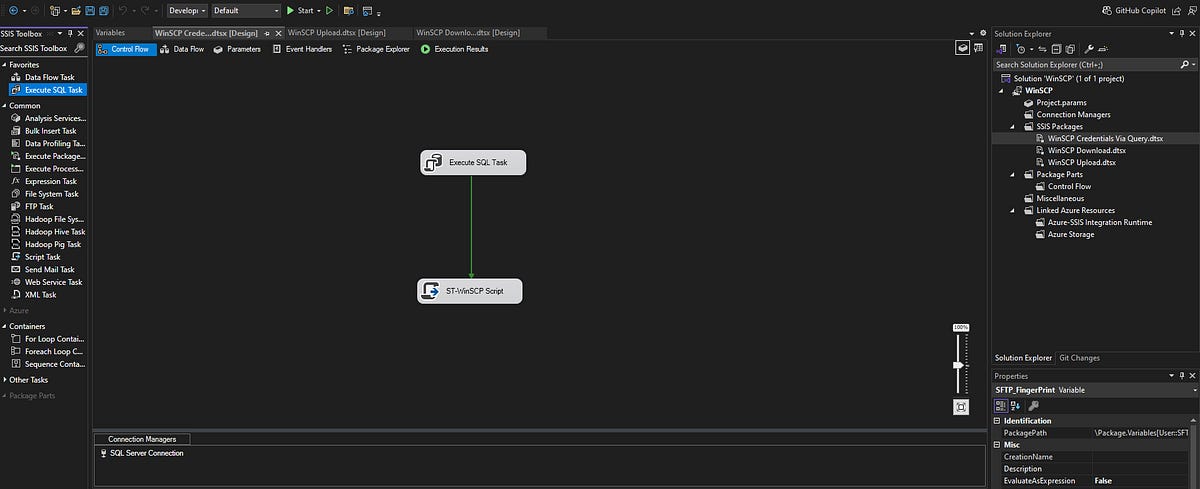
Double click on the Execute SQL Task to configure it.
Select “Single row” for the result set.
Select “OLE DB” or the another appropriate connection type.
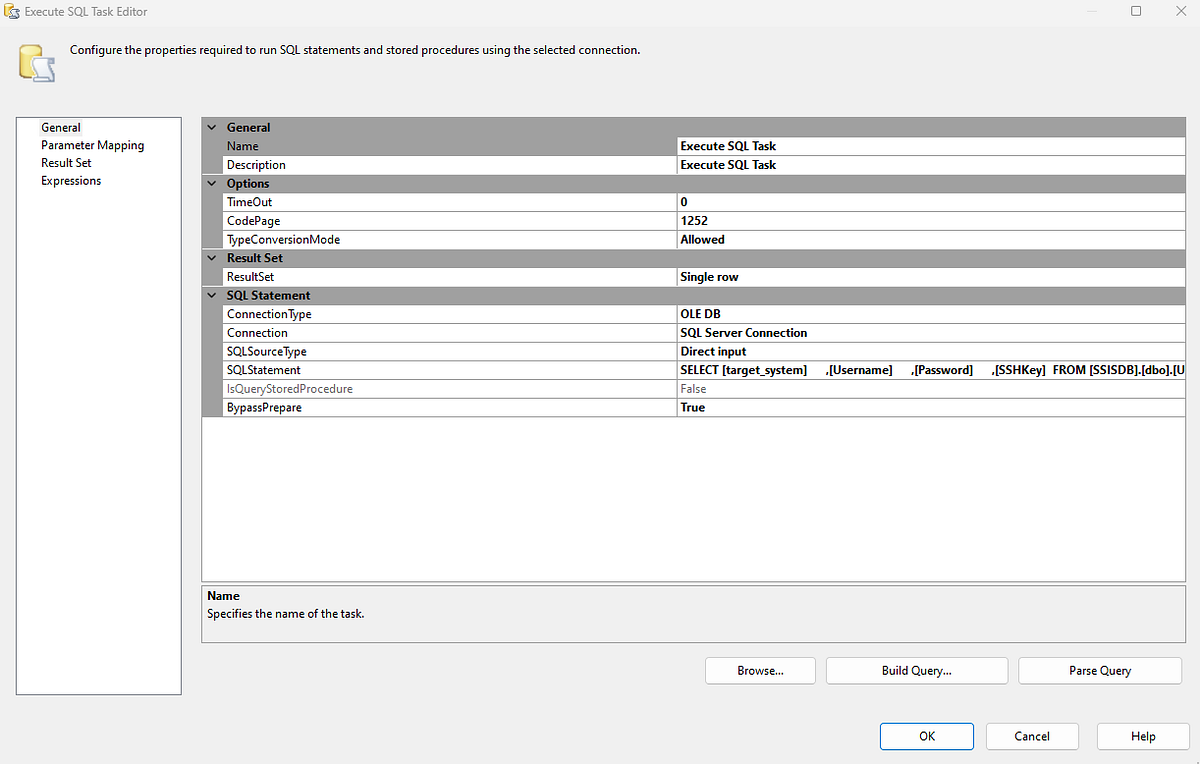
Select or create your connection if necessary. This is the connection I created. Your connection may differ. Additionally, I named it “SQL Server Connection”.
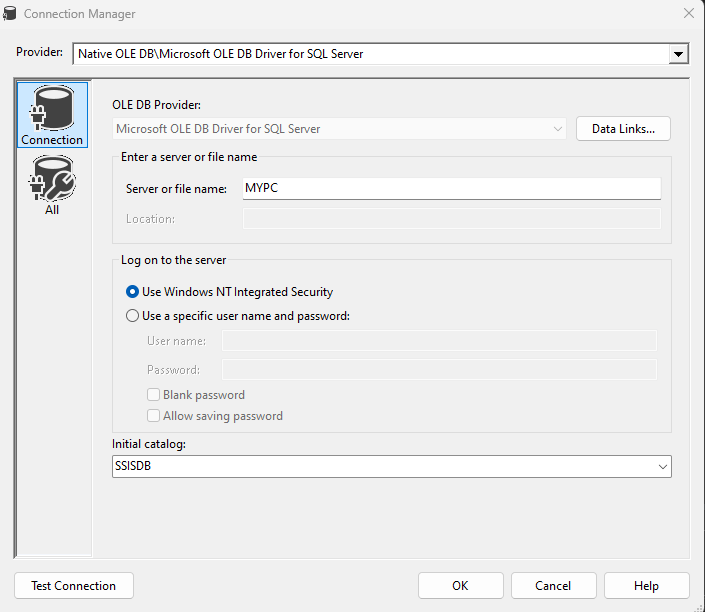
Once your connection has been created, select “Direct Input” as your SQL Source Type.
Enter the following for SQL Statement. It is the query we constructed earlier.
SELECT [target_system]
      ,[Username]
      ,[Password]
      ,[SSHKey]
  FROM [SSISDB].[dbo].[UserCredentials]
  where target_system = '192.168.1.169'
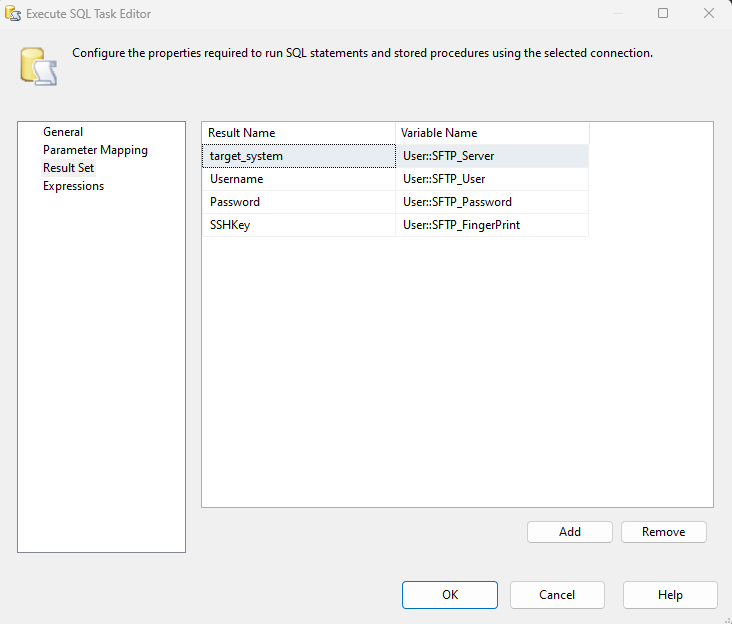
In the Execute SQL Task, map the query results to variables in the ‘Result Set’ tab. Assign each query column to its corresponding variable: SFTP_FingerPrint, SFTP_Password, SFTP_Server, and SFTP_User. We will ensure these variables have no default values in the next step.
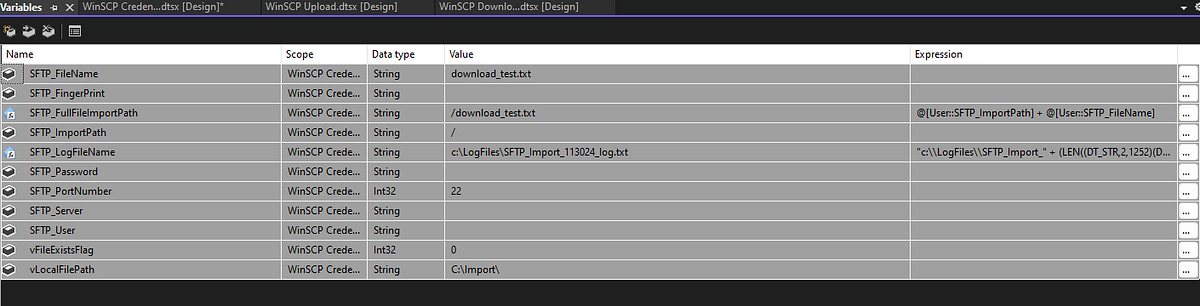
Clear out the variables values that would be populated at runtime: SFTP_FingerPrint, SFTP_Password, SFTP_Server, and SFTP_User.
All the hard work is done! We get to test and see if we did everything correctly.
Since I am using a local SFTP server, I will create a text file named download_test.txt and place it at the root directory of the server.
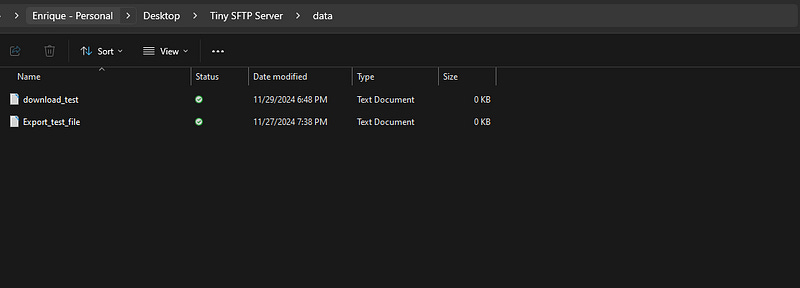
I will verify that my local server is active and able to receive connections. If so, we can proceed with the test by running the package. If it works as expected, the package should have downloaded the file to the C:\Import directory from the server, deleted the original from the server, and created a log file of the transaction.
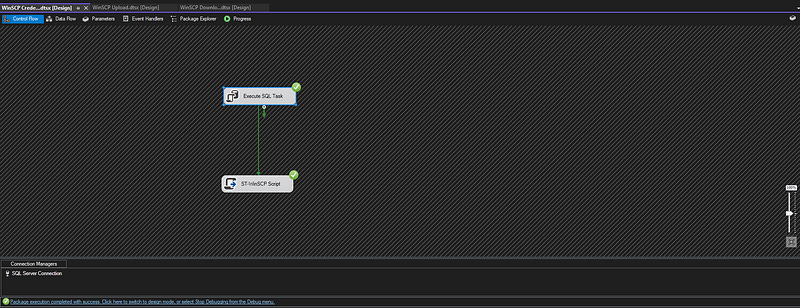
It passed!
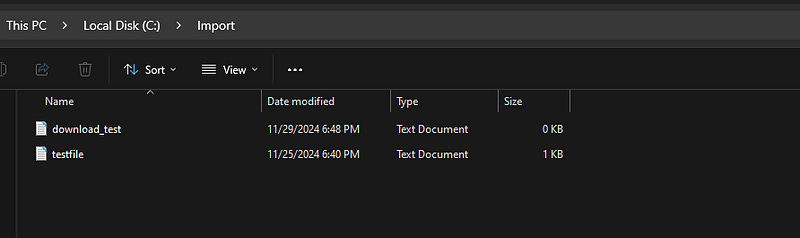
The file was imported into the local directory as expected.
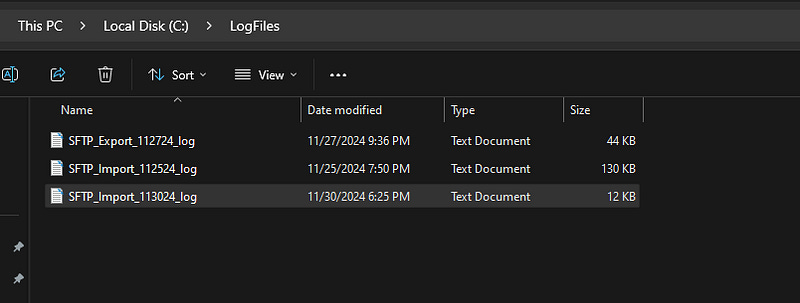
A log file has been generated.
With the test complete and the package running as expected, you now have an SSIS package that dynamically assigns variable values at runtime. Instead of hard-coding SFTP credentials (or any other configuration values), you’ve let SSIS fetch them directly from your database. This is cleaner, more maintainable, and sets you up for packages that adapt automatically when your source data changes.
Troubleshooting
Even though this setup is straightforward, a few common issues can trip you up:
Variables not mapped correctly
If your Execute SQL Task runs but your variables stay empty, check the Result Set tab to ensure each column is mapped to the correct variable name
2. Data type mismatches
If your query returns an NVARCHAR but your SSIS variable is DT_STR, you’ll see an error. Align your SSIS variable data types with your query output.
3. Query returns no rows
If nothing is returned, the task succeeds but your variables will stay null. Double-check your WHERE clause and test the query in SSMS first.
4. Incorrect result set type
Make sure you’ve set the Execute SQL Task to Single Row when you’re expecting just one record. Using the wrong type will cause SSIS to complain.
Takeaway
The article provides a guide to using an Execute SQL Task in SSIS to assign values to variables at runtime. It illustrates how to query a database to dynamically populate variables, using an example that retrieves SFTP credentials stored in a SQL Server table. The process includes creating a table, populating it with credentials, writing a query to fetch the data, and configuring the Execute SQL Task to map the results to SSIS variables. Encryption/decryption for securing sensitive data is out of scope for this article, but the focus is on demonstrating the “how-to” for this approach.